
System Operations - Time Parameters
1.1. Overview of Time Operations
In application development, especially when designing log (diary/record) functions, timestamp operations are frequently performed. Timestamps can intuitively reflect the program execution time and execution efficiency.
1.1.1 Checking the System Time (Clock)
The command for checking the system time is as follows.
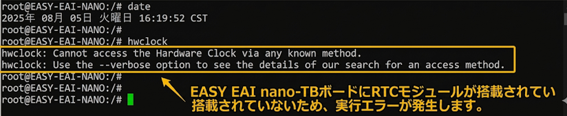
1.1.1 Checking the System Time (Clock) Figure 19
- The date command checks the system time (UTC + time zone). It is currently set to CST or another time zone.
1.1.2 Setting the System Time (Clock)
There are two methods for setting the system time: [manual time setting] and [time setting by NTP].
- [Manual time setting]: You can use the date command to set the system time. The setting format is “yyyy-MM-dd HH:mm:ss”.

1.1.2 Setting the System Time (Clock) Figure 20
-
If an RTC is available: after setting the system time, you need to enter “hwclock -w” to write the time to the hardware RTC.
-
Changing the time usually requires administrator privileges. If you are not an administrator user, you need to add “sudo” at the beginning of the command.
-
[Time setting by NTP]: NTP stands for Network Time Protocol. Through a time server on the Internet, it automatically synchronizes the board time according to certain rules (depending on the ntp-client policy).
1.1.3 Setting the RTC Clock
This article mainly introduces the system time. For the RTC part (if applicable), refer to “Peripheral Interface Usage Instructions / RTC”.
1.1.4 Time Zone and Time Synchronization Service
-
Time zone: Both the [system clock] and the [RTC clock] use UTC time. When using time in different regions, the influence of the time zone must be considered.
-
Time synchronization service: The [system clock] can not only be changed manually, but is also affected by the time synchronization service.
For [time zone settings] and [time synchronization service], on EASY-EAI-Nano-TB, refer to the article “Application Note: Automatic Time Synchronization and Time Zone Settings” and follow the procedures there. For a more detailed interaction mechanism, refer to “Overview of System Time Management”.
1.1.5 System Uptime
Check the uptime information from system power-on to the time when the command is executed.

1.1.5 System Uptime Figure 21
The information output by the uptime command is as follows:
-
Current server time
-
Current server uptime
-
Current number of users
-
Current load average (load status)
1.2. Quick Start
1.2.1 Preparing the Development Environment
If this is your first time reading this document, read “Getting Started / Preparing the Development Environment / Preparing and Updating the Easy-EAI Compilation Environment” first, and follow its procedures to build the compilation environment.
On the Ubuntu system on the PC, run the run script to enter the EASY-EAI compilation environment. The details are as follows.
cd ~/develop_environment./run.sh 22041.2.2 Downloading the Source Code and Compiling the Sample
In the EASY-EAI compilation environment, create a directory for managing the source code repository.
cd /optmkdir EASY-EAI-Toolkitcd EASY-EAI-Toolkithttps://dl.dragonwake.com/download/rv1126b/embedded/EASY-EAI-Toolkit-1126B/Demos.zip
Download the Demos.zip compressed file from the link above, upload it to the /opt/EASY-EAI-Toolkit directory of the virtual machine, and decompress it. Move to the directory of the corresponding sample and perform the compilation. The specific commands are as follows.
cd EASY-EAI-Toolkit-1126B/Demos/common-system_opt/./build.sh💡 Note: Because the dependent libraries are placed on the board, make sure to keep /mnt mounted during cross-compilation.
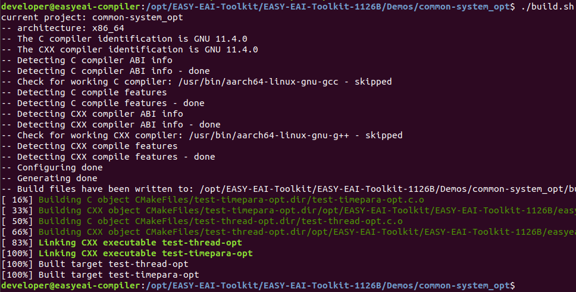
1.2.2 Downloading the Source Code and Compiling the Sample Figure 23
1.2.3 Running the Sample
Enter the background of the board through serial debugging or SSH debugging, and move to the location where the sample is placed. The path is as follows.
cd /userdata/Demo/common-system_opt
1.2.3 Running the Sample Figure 24
The command for running the sample is as follows.
./test-timepara-opt1.2.4 Execution Result
The execution result is as follows.
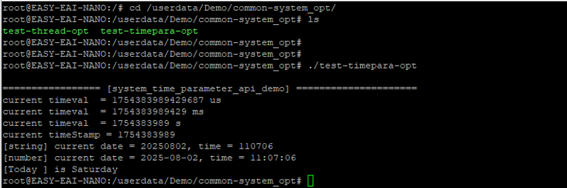
1.2.4 Execution Result Figure 25
For detailed API descriptions and API calls (the source code of this sample), refer to the following description.
1.3. Time Operation API Description
1.3.1 Include/Reference Method
The EASY EAI api library is located in the easyeai-api directory of this repository. To allow customers to directly call the EASY EAI api library in their local projects, the libraries and header files that need to be linked in the project are listed below.
| Description | Description in CMake | Description in Makefile |
|---|---|---|
| api.cmake | ${common_root}/system_opt/api.cmake | None |
| Header file directory | ${SYSTEM_OPT_INCLUDE_DIRS} | -I ../../easyeai-api/common/system_opt |
| Source file directory | ${SYSTEM_OPT_SOURCE_DIRS} | ../../easyeai-api/common/system_opt |
| Library file directory | None | None |
| Library link parameters | ${SYSTEM_OPT_LIBS} | None |
The API source code path is EASY-EAI-Toolkit-1126B/easyeai-api/common/system_opt/. Users can check the implementation of the interfaces through the source code, and can also directly modify the source code.
1.3.2 Obtaining Timestamps (for Debugging)
The timestamp acquisition functions are used to obtain seconds, milliseconds, and microseconds. The function prototypes are as follows.
uint64_t get_timeval_us();uint64_t get_timeval_ms();uint64_t get_timeval_s();The specific description is as follows.
| Function name: get_timeval_us(), get_timeval_ms(), get_timeval_s() | Details |
|---|---|
| Header file | easyeai-api/common/system_opt/system_opt.h |
| Input parameters | None |
| Return value | Timestamp. Microsecond level, millisecond level, and second level, respectively |
| Notes | None |
1.3.3 System Delay (Based on nanosleep)
When nanosleep is called, the thread/process enters the TASK_INTERRUPTIBLE state and remains in that state until it is woken up, then returns to the TASK_RUNNING state. TASK_INTERRUPTIBLE can be woken up by a signal or wake_up(); when a signal is received, the process is set to the “runnable” state. This performs second-level, millisecond-level, and microsecond-level delay (sleep) for a thread/process. The function prototypes are as follows.
uint32_t osTask_usDelay(uint32_t us);uint32_t osTask_msDelay(uint32_t ms);uint32_t osTask_sDelay(uint32_t s);The specific description is as follows.
| Function name: osTask_usDelay(), osTask_msDelay(), osTask_sDelay() | Details |
|---|---|
| Header file | easyeai-api/common/system_opt/system_opt.h |
| Input parameters | Delay time. Microsecond level, millisecond level, and second level, respectively |
| Return value | If the thread/process is woken unexpectedly, the remaining delay time that was not executed |
| Notes | None |
1.3.4 System Delay (Based on usleep)
Performs millisecond-level delay (sleep) for a thread/process. The function prototype is as follows.
uint32_t msleep(uint32_t ms);The specific description is as follows.
| Function name: mssleep() | Details |
|---|---|
| Header file | easyeai-api/common/system_opt/system_opt.h |
| Input parameters | Delay time (millisecond level) |
| Return value | If the thread/process is woken unexpectedly, the remaining delay time that was not executed |
| Notes | It is also possible to use the system-provided usleep or sleep to perform microsecond-level or second-level delays |
1.3.5 Obtaining the Time
Obtains the current system time. Its value represents the number of seconds elapsed from 00:00:00 on January 1, 1970, UTC (Coordinated Universal Time) to the current time. The function prototype is as follows.
int get_time_stamp();The specific description is as follows.
| Function name: get_time_stamp() | Details |
|---|---|
| Header file | easyeai-api/common/system_opt/system_opt.h |
| Input parameters | None |
| Return value | Timestamp (second level) |
| Notes | None |
1.3.6 Obtaining the System Date and Time
The function prototype for obtaining the system date and time is as follows.
void get_system_date_time(uint32_t \*curDate, uint32_t \*curTime);The specific description is as follows.
| Function name: get_system_date_time() | Details |
|---|---|
| Header file | easyeai-api/common/system_opt/system_opt.h |
| Input parameters | curDate: variable pointer stored in year-month-day order curTime: variable pointer stored in hour-minute-second order |
| Return value | None |
| Notes | None |
1.3.7 Setting the System Date and Time
The function prototype for setting the system date and time is as follows.
void set_system_date_time(int year, int mon, int day, int hour, int min, int second);The specific description is as follows.
| Function name: set_system_date_time() | Details |
|---|---|
| Header file | easyeai-api/common/system_opt/system_opt.h |
| Input parameters | year: year mon: month day: day hour: hour min: minute second: second |
| Return value | None |
| Notes | Note that if NTP time synchronization is enabled, the time set by this function will be overwritten |
1.4. API Test Case
The sample code path is EASY-EAI-Toolkit-1126B/Demos/common-system_opt/test-timepara-opt.c.