
Browser Installation
1.1. Overview
Installing a browser requires the desktop system to be installed in advance.
1.2. Installation Procedure
1.2.1 Environment Preparation
Access the board console via serial debugging and confirm that the board can connect to the network (Internet).
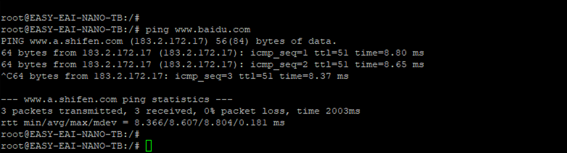
1.2.1 Environment Preparation Figure 1
Run the following command to install xdg-utils first:
sudo apt-get update && sudo apt install -y xdg-utils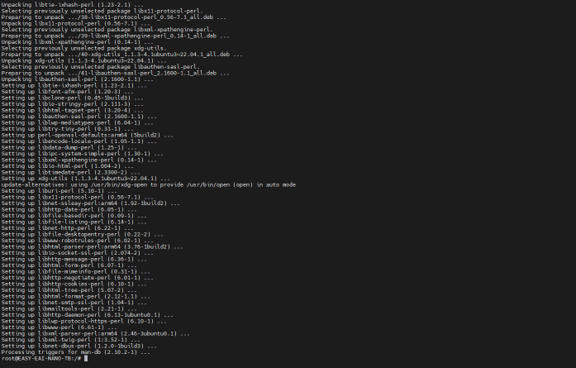
1.2.1 Environment Preparation Figure 2
1.2.2 Chrome Browser Installation
Due to compatibility issues, the release version of the browser cannot be installed directly, so you need to install the browser maintained by the Chromium team.
Step 1: Add the Chromium team’s PPA (for Ubuntu/Debian):
sudo add-apt-repository ppa:saiarcot895/chromium-devsudo apt updateStep 2: Install chromium-browser.
sudo apt install chromium-browserAfter completion, restart the board.
1.2.3 Error Handling
If an error occurs during installation, you need to modify the kernel configuration.
CONFIG_SQUASHFS=yCONFIG_SQUASHFS_XATTR=yCONFIG_SQUASHFS_XZ=yCONFIG_SQUASHFS_LZO=yCONFIG_BPF=yCONFIG_BPF_JIT=yCONFIG_BPF_SYSCALL=yCONFIG_BPF_EVENTS=y1.3. Launching the Browser
It cannot be launched from the serial command line.

1.3. Launching the Browser Figure 3
chromium-browser --no-sandbox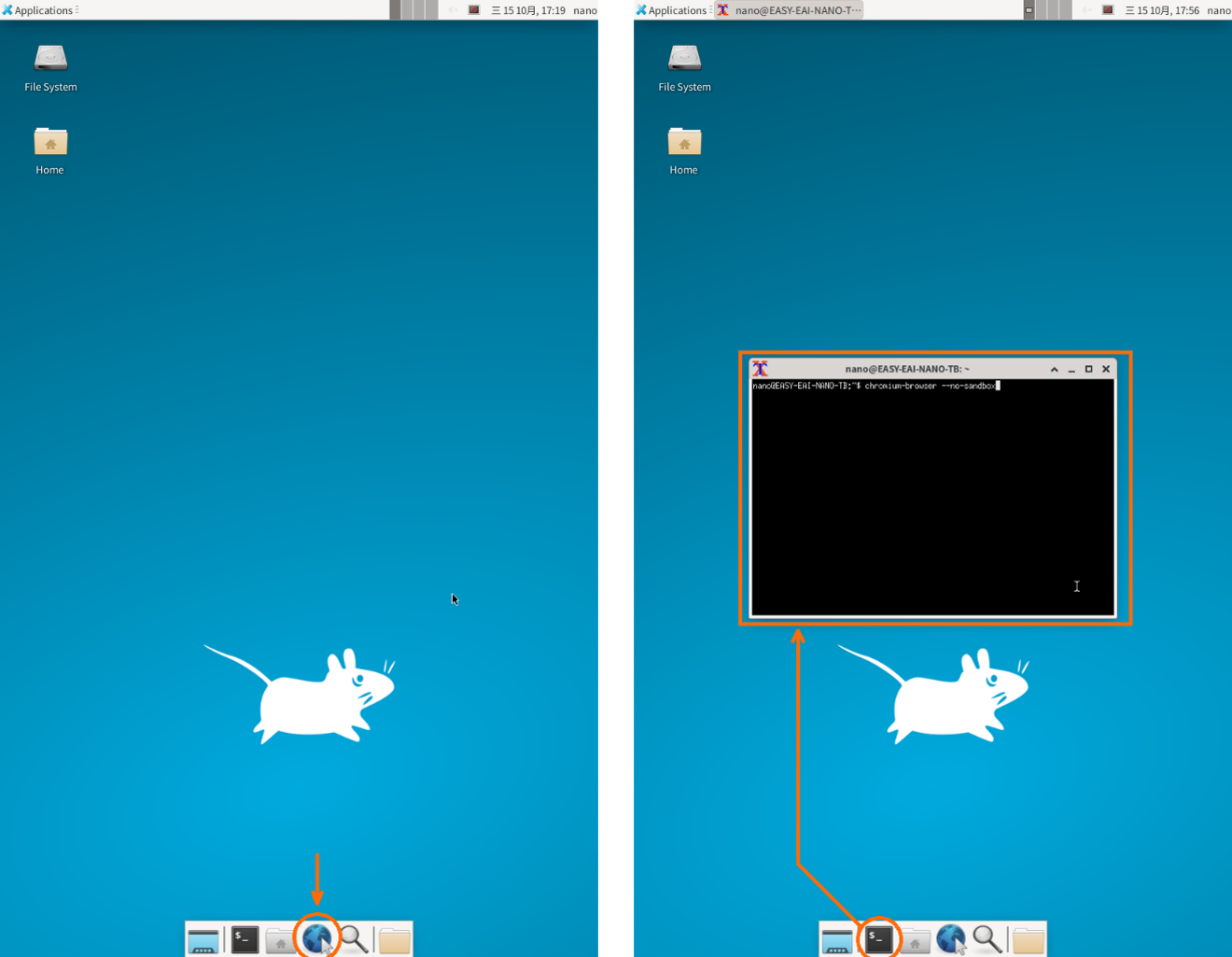
1.3. Launching the Browser Figure 4