
Automatic Time Synchronization and Time Zone Settings
1.1. Automatic Time Synchronization
The full name of NTP is Network Time Protocol. It can synchronize the system time of the local ARM board through a time server on the network. EASY EAI nano-TB uses timesyncd for NTP time synchronization. For specific operations, refer to the following instructions.
1.1.1 Checking the Time Synchronization Service
ps -ef \| grep timesyncd1.1. 2 Temporary Start/Stop
Users can use the following commands to stop or start the time synchronization service.
sudo systemctl stopsystemd-timesyncd.servicesudo systemctl startsystemd-timesyncd.serviceThe time synchronization service can also be restarted with the following command.
**sudo systemctl restart systemd-timesyncd.service**1.1.3 Permanent Enable/Disable
Permanently disable the time synchronization service so that it will not start after the device is rebooted. First stop the service, and then disable it.
sudo systemctl stopsystemd-timesyncd.servicesudo systemctl disablesystemd-timesyncd.serviceEnable the time synchronization service so that it starts automatically when the device is rebooted. First enable the service, and then start it.
sudo systemctl enablesystemd-timesyncd.servicesudo systemctl startsystemd-timesyncd.service1.2. Setting the System Time Zone
When creating a new log file, if the time zone of the ARM board itself does not match the local time zone of the current location, the log time may not match the PC time. The directories and files related to the time zone of EASY EAI nano-TB are as follows.
| Path | Description |
|---|---|
| /usr/share/zoneinfo/* | zoneinfo time zone module files. These store the time zone files for each region. |
| /etc/localtime | Time zone file of the local machine. In practice, one of the files in the zoneinfo module is assigned to this file. |
| /etc/timezone | Time zone file of the local machine. It is used for direct reading by the application layer. |
The steps for setting the system time zone are as follows. First, select the desired time zone file from the zoneinfo directory and replace the /etc/localtime file. Next, modify /etc/timezone to the target region. Finally, reset (reboot) the evaluation board and check the system. You will see that the time zone has been set successfully.
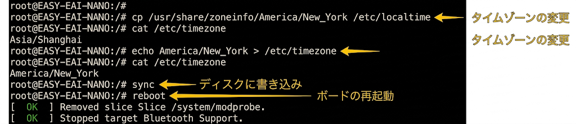
1.2. Setting the System Time Zone Figure 1
1.3. System Time Management
Manual time adjustment, automatic time synchronization, and time zone setting all belong to the management of the [system clock].